
In Shopify, tax rates for US states are typically handled automatically based on the customer’s shipping address, including state, county, city, and any special district taxes.
You don’t have to manually enter a base rate for each state, Shopify has the functionality to pull and applies the most up-to-date rates from official sources when you enable tax collection for a state.
However, for that to happen, you must first register with the relevant state tax authorities to get a sales tax ID (or permit number) before setting up collection in Shopify. If you need custom rates (e.g., for specific products or shipping), you can create overrides.
Shopify Automated Tax Setup Prerequisites
- Determine if you have sales tax nexus in a state (e.g., due to sales volume, physical presence, or inventory storage). Consult state tax authorities or a tax professional.
- Register for sales tax in each applicable state and obtain your sales tax ID.
- Ensure your Shopify store locations are accurately set up (under Settings > Locations) for proper tax calculations
Shopify Tax Nexus Notices
If you navigate to your Store Settings (Lower Left Gear Icon ) then go to > Taxes & Duties. Shopify will have a notice of the states where you may meet the nexus tax thresholds. Its important to verify this information and note the states where you meet the nexus, this is where you will need to get a tax ID, from each state.

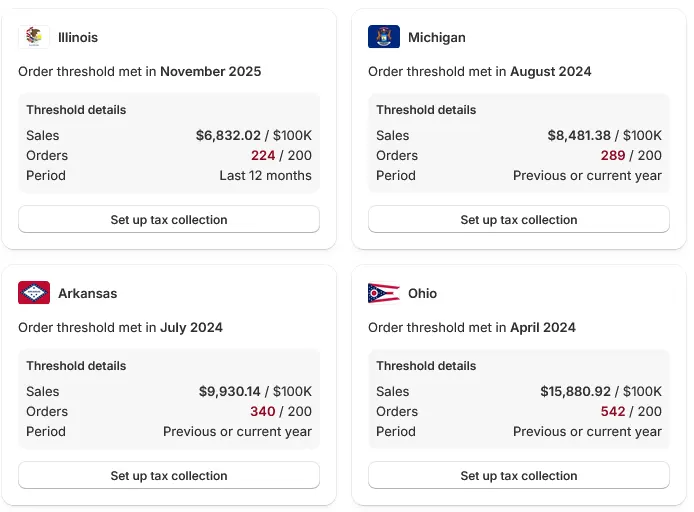
Steps to Enable Tax Collection for Each State
- From your Shopify admin dashboard, go to Settings > Taxes and duties.
- In the Manage sales tax collection section, click United States.
- In the Regional settings section, click Add new state (or Collect sales tax if adding your first one).
- Select the state from the dropdown list and enter your state’s sales tax ID in the Sales tax ID field.
- Click Advanced options and review the tax/shipping options.
- Click Collect taxes (or Save if editing an existing setup).
- Repeat for each additional state where you’re registered.
Once enabled, Shopify will automatically calculate and apply the appropriate tax rates at checkout based on the buyer’s location.
Registering Multiple States
For streamlined multi-state tax registration, use the free Streamlined Sales Tax Registration System (SSTRS) if registering in member states: https://www.sstregister.org/ (covers full members like Arkansas, Georgia, Indiana, Iowa, Kansas, Kentucky, Michigan, Minnesota, Nebraska, Nevada, New Jersey, North Carolina, North Dakota, Ohio, Oklahoma, Rhode Island, South Dakota, Utah, Vermont, Washington, West Virginia, Wisconsin, Wyoming; plus associate Tennessee).
Manually Obtaining a Tax ID
For non-SST states or individual registrations, here are direct official (or primary portal) URLs to start the sales tax permit/ID application process. Most are free, online, and provide your permit number/account ID upon approval (instant to weeks). Select out-of-state/remote seller options where available.
Alabama: https://myalabamataxes.alabama.gov/
Arizona: https://aztaxes.gov/ (register via Arizona Department of Revenue portal)
Arkansas: https://atap.arkansas.gov/ (Arkansas Taxpayer Access Point; also via SSTRS)
California: https://www.cdtfa.ca.gov/services/registration.htm (California Department of Tax and Fee Administration online registration)
Colorado: https://tax.colorado.gov/sales-use-tax (Colorado Sales Tax Online Registration)
Connecticut: https://portal.ct.gov/DRS (myconneCT portal for new business registration)
District of Columbia: https://mytax.dc.gov/
Florida: https://floridarevenue.com/taxes/Pages/registration.aspx (Florida Department of Revenue e-Services)
Georgia: https://gtc.dor.ga.gov/ (Georgia Tax Center; also via SSTRS)
Hawaii: https://hitax.hawaii.gov/ (Hawaii Tax Online)
Idaho: https://tax.idaho.gov/ (Idaho Business Registration)
Illinois: https://mytax.illinois.gov/Indiana: https://secure.in.gov/dor/ (INTIME portal; also via SSTRS)
Iowa: https://tax.iowa.gov/ (Iowa Tax Registration; also via SSTRS)
Kansas: https://www.ksrevenue.gov/ (Kansas Customer Service Center; also via SSTRS)
Kentucky: https://onestop.ky.gov/start/Pages/default.aspx (Kentucky Business One Stop; also via SSTRS)
Louisiana: https://revenue.louisiana.gov/Registration (LaTAP portal)
Maine: https://www.maine.gov/revenue/taxes/sales-use-service-provider-tax/registration
Maryland: https://marylandtaxes.gov/ (Comptroller of Maryland online registration)
Massachusetts: https://mtc.dor.state.ma.us/mtc/ (MassTaxConnect)
Michigan: https://treas-secure.state.mi.us/eservicepublic/ (Michigan Treasury Online; also via SSTRS)
Minnesota: https://www.revenue.state.mn.us/businesses (Minnesota e-Services; also via SSTRS)
Mississippi: https://tap.dor.ms.gov/ (Mississippi Taxpayer Access Point)
Missouri: https://mydor.mo.gov/ (myTax Missouri)
Nebraska: https://revenue.nebraska.gov/businesses (Nebraska Tax Application; also via SSTRS)
Nevada: https://www.nevadatax.nv.gov/ (Nevada Tax Center; also via SSTRS)
New Jersey: https://www.nj.gov/treasury/taxation/ (New Jersey Business Registration; also via SSTRS)
New Mexico: https://tap.state.nm.us/ (Taxpayer Access Point)
New York: https://www.tax.ny.gov/online/bus.htm (New York Business Online Services)
North Carolina: https://www.ncdor.gov/registration (NC Department of Revenue online; also via SSTRS)
North Dakota: https://www.tax.nd.gov/ (ND TAP; also via SSTRS)
Ohio: https://gateway.ohio.gov/ (Ohio Business Gateway; also via SSTRS)
Oklahoma: https://oktap.tax.ok.gov/ (OkTAP; also via SSTRS)
Pennsylvania: https://www.pa100.state.pa.us/ (myPATH portal)
Rhode Island: https://tax.ri.gov/online-services (Rhode Island Division of Taxation; also via SSTRS)
South Carolina: https://mydorway.dor.sc.gov/
South Dakota: https://apps.sd.gov/rv23dor/ebiz/main.aspx (South Dakota E-Path; also via SSTRS)
Tennessee: https://tntap.tn.gov/ (TNTAP portal)
Texas: https://comptroller.texas.gov/taxes/permit/ (Texas Online Tax Registration)
Utah: https://secure.utah.gov/bes/ (Utah OneStop Business Registration; also via SSTRS)
Vermont: https://myvermont.gov/ (myVermont portal; also via SSTRS)
Virginia: https://www.tax.virginia.gov/register (Virginia Tax online registration)
Washington: https://dor.wa.gov/ (My DOR portal; also via SSTRS)
West Virginia: https://mytaxes.wvtax.gov/ (MyTaxes; also via SSTRS)
Wisconsin: https://www.revenue.wi.gov/Pages/OnlineServices/home.aspx (My Tax Account; also via SSTRS)
Wyoming: https://wyotax.gov/ (Wyoming Internet Filing; also via SSTRS)
Viewing or Adjusting Shopify Automatic Tax Rates
After the initial tax setup, return to Settings > Taxes and duties > United States. Under Regions you’re collecting in, you’ll see a list of enabled states with their default (automatic) rates summarized. You can’t directly edit the base state rates since they’re auto-updated from Shopify itself, but you can edit the state setup (e.g., update your tax ID) by clicking the pencil icon next to the state.
Creating Shopify Tax Overrides for Custom Rates
If the automatic rates don’t fit (for exempt or reduced-rate products), you can set overrides per state!
- Go to Settings > Taxes and duties > United States.
In the Tax rates and exemptions section, choose an override type:
- For products: Click Add product override. Select a product collection (create one first under Products > Collections if needed), choose the state, enter the custom tax rate (e.g., 0% for exempt items), and save.
- For shipping: Click Add shipping override. Select the state, enter the custom rate, and save.
Note that custom tax overrides apply only to the specified items or shipping and take priority over automatic rates