AcyMailer is a powerful email marketing plugin for WordPress and Joomla, enabling users to craft professional newsletters, automate campaigns, and engage subscribers efficiently. In this short tut. I’m focusing on Joomla versions.
Whether you’re promoting products, sharing updates, or nurturing leads, its drag-and-drop editor and template system make the process intuitive. In this guide, I’ll walk through two essential features: enabling a default template to ensure brand consistency across emails and creating a new mailing campaign from scratch. These steps assume you have AcyMailing installed and basic access to your site’s dashboard.
Enabling a Default Template
A default ACYMailer template automatically loads when you start a new campaign, saving time and maintaining a uniform look for your emails. AcyMailing also allows you to create and select templates using its built-in editor, then designate one as the default.
Access the Templates Section: Log in to your WordPress or Joomla admin panel. Navigate to AcyMailing > Templates (or Emails > Templates in some versions). This lists all available templates, including pre-installed ones and any you’ve created.
Create or Select a Template: If you need a new one, click New or Create. Choose the drag-and-drop editor for visual design—drag blocks like headers, images, text, and CTAs into the canvas. Customize fonts, colors, and layouts to match your brand. For existing templates, browse the list and preview them by clicking the eye icon.
Publish the Template: Ensure the template is published (toggle the status to “Published” if it’s not). Unpublished templates won’t appear in campaign creation.
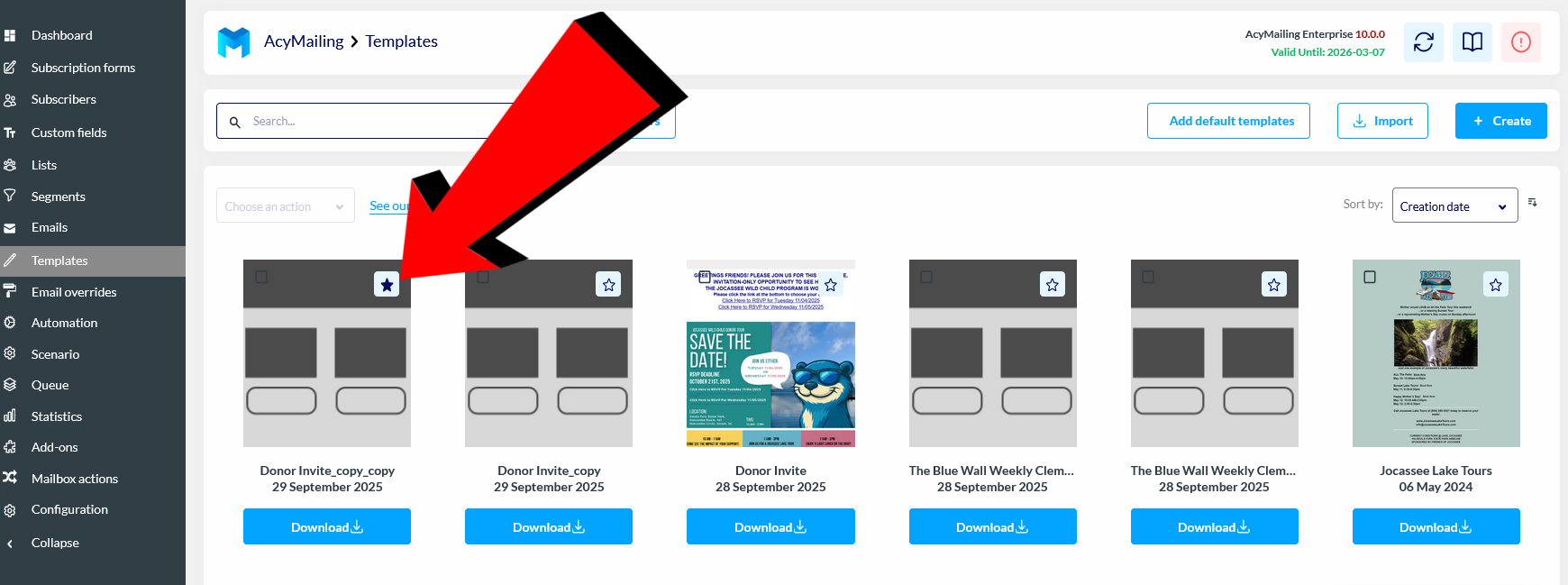
Set as Default: In the template’s edit view or the main list under > Templates, look for a Star on the template block when you hover. Check the star next to your chosen template to mark it as default. Only one template can be default at a time. Save changes. Now, when you create a new campaign, this template you just marked with a star will auto-load, though you can always switch it to another template later.
Notice the highlighted star that the arrow is pointing at. Thats how you set a default template in ACYMailing Enterprise 10.
Now when you go to > Emails on the Menu, Create New Campaign, the template that you just highlighted with the star will be set as the default mail template.